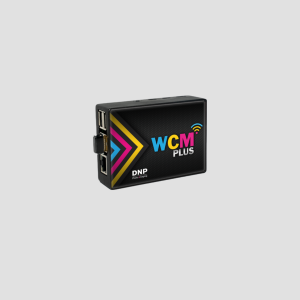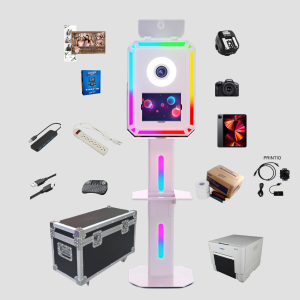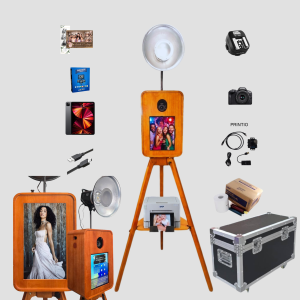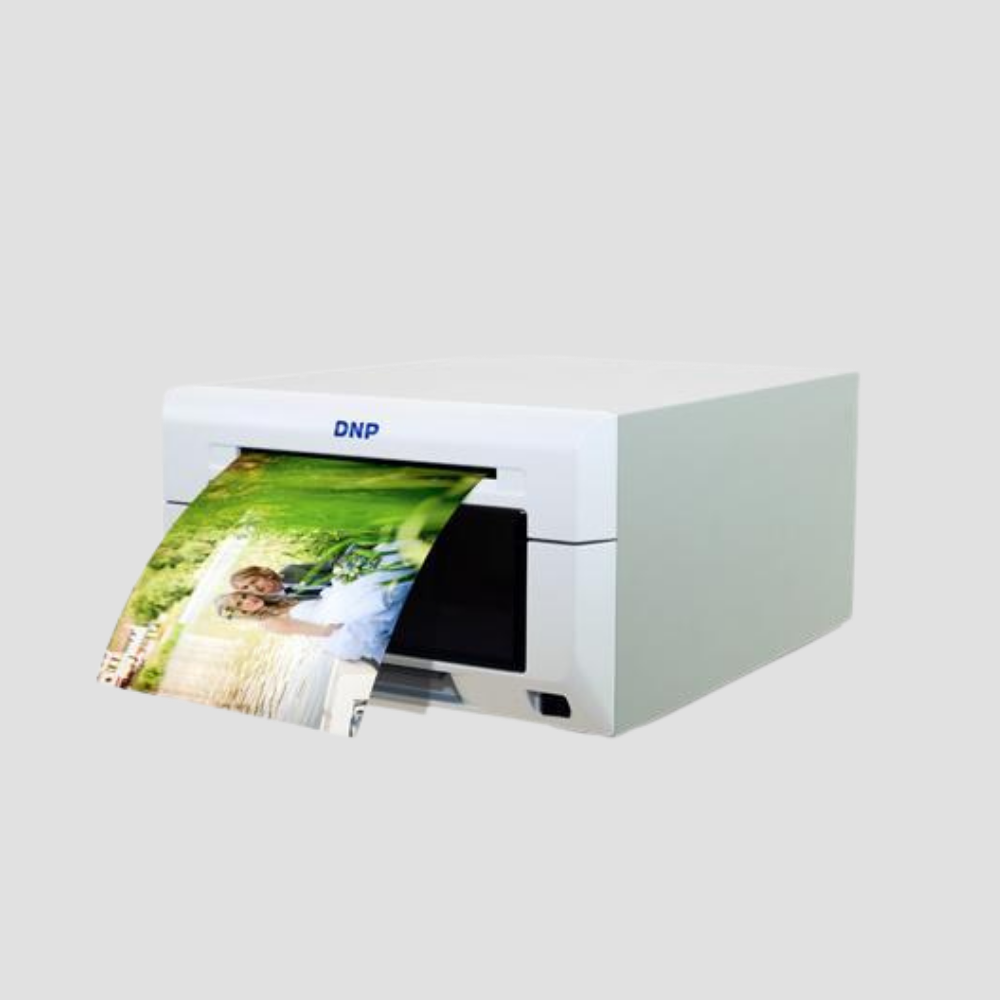
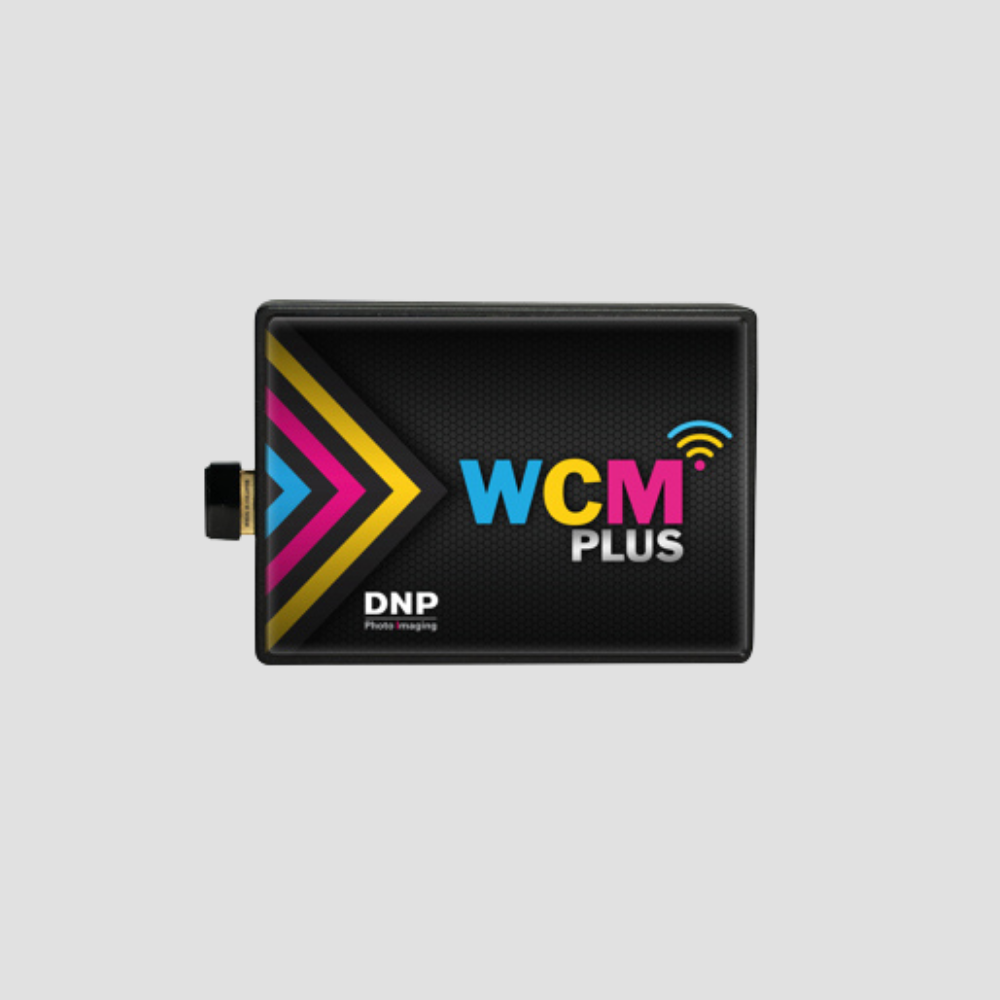
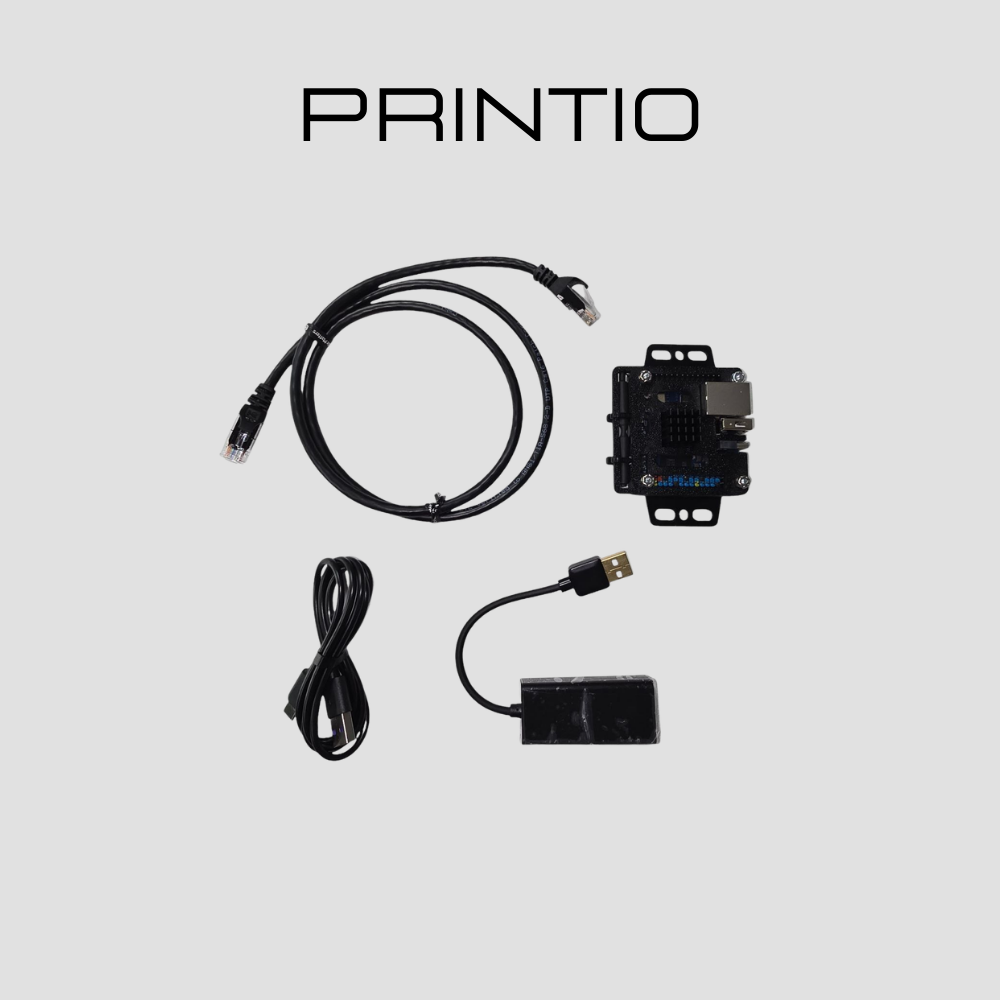
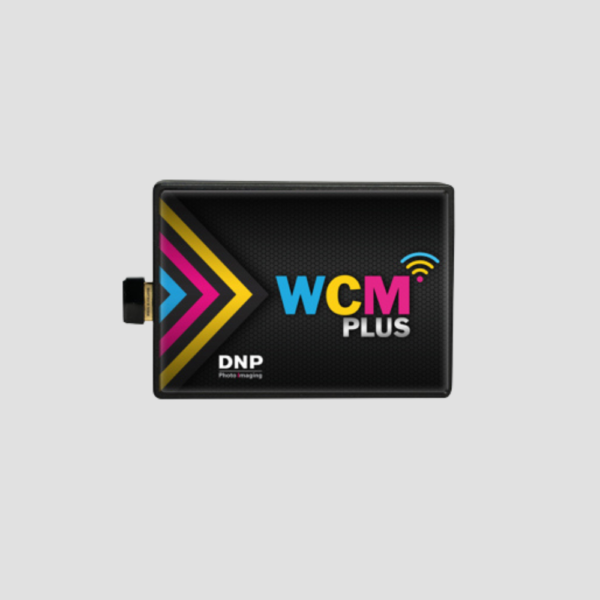
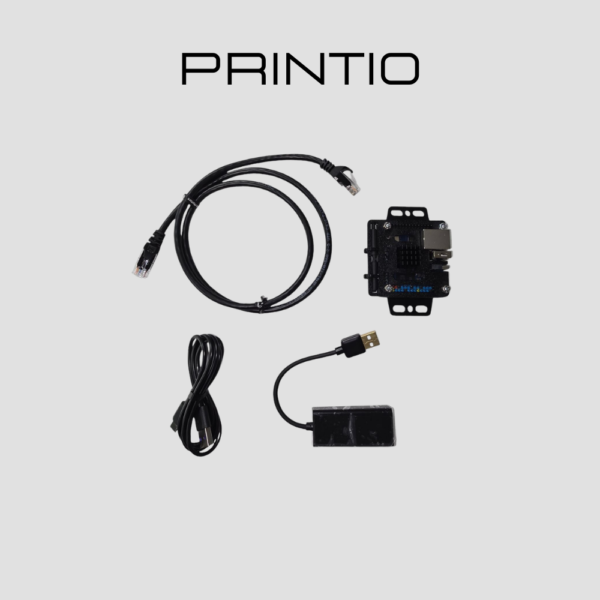
The DNP DS620A is the industry standard for professional photo booths, offering a perfect balance of speed, compact size, and high-volume reliability. As an ATA Verified unit, we have validated this printer to work seamlessly with both Printio (wired iPad) and DNP WCM+ (wireless) workflows.
Whether you are printing 2×6 strips for a wedding or 6×20 panoramas for a corporate activation, the DS620A delivers lab-quality results in as little as 8.3 seconds. Its energy-efficient standby mode and 3-year Advanced Exchange Warranty make it the smartest investment for your event business.
Key Features:
-
Proven Performance: Blazing fast 4×6 prints in ~8.3 seconds (up to 400 prints per hour).
-
Versatile Formats: Supports 2×6 strips, 4×6, 5×7, 6×8, and even 6×14/6×20 panoramas.
-
Multi-Finish Technology: Select between Glossy, Matte, Luster, or Fine Matte finishes using the same media.
-
ATA Verified Compatibility: Confirmed low-latency performance with Printio and AirPrint support via WCM+.
-
High Capacity: Large roll capacity (400 prints for 4×6) means fewer interruptions during busy events.
DNP DS620A Pro Setup Guide
1. Wired Power User: ATA Printio (iPad)
For the lowest latency and most stable connection, use a wired setup.
-
The Hub Rule: Use a high-quality USB-C hub.
-
Power Delivery: Connect a 30W USB-C PD adapter to your hub. This prevents the common “drop-out” issues where the iPad or camera loses connection mid-event.
2. Wireless Freedom: DNP WCM+
If you prefer a cable-free floor plan, the WCM+ enables AirPrint workflows.
-
Strip Support: You can print 2×6 strips even on 4×6 media by enabling the “multi-cut” function in your booth software (Snappic, LumaBooth, etc.).
3. Pro Hardware Tips
-
Cable Quality: Always use a shielded USB-A to USB-B cable to prevent data interference.
-
Power Protection: Always plug into a surge-protected power strip. Sudden voltage spikes at venues can damage the thermal print head.
-
Resolution Tuning: For portrait-style shots with fine detail, set your driver to 300×600 dpi (High-Res mode).
4. Finish & Media
-
No Media Swapping: You can switch between Glossy, Matte, Luster, and Fine Matte directly in the print driver without physically changing the paper roll.
DNP DS620A On-Site Troubleshooting Checklist
Keep this quick-reference guide in your tech kit to resolve common printing issues during live events.
1. Connection & Power
-
[ ] Device Not Found: Ensure the USB-B cable is fully seated in the printer and your hub/WCM+.
-
[ ] iPad Drop-outs: Confirm your USB-C hub is receiving at least 30W PD power.
-
[ ] Power Cycle: Turn the printer off for 10 seconds and back on to reset the internal buffer.
2. Media & Paper Jams
-
[ ] Red Flashing Light: Check if the paper roll is empty or the ribbon has snapped.
-
[ ] Paper Jam: Open the front door, remove the scrap paper tray, and gently clear any stuck sheets.
-
[ ] Spooling: Ensure the paper is fed under the black rollers and the “beep” sounds for correct alignment.
3. Print Quality
-
[ ] White Lines: Use a cleaning kit or a soft, lint-free cloth to gently wipe the thermal print head.
-
[ ] Wrong Finish: Check your software settings (Snappic/LumaBooth) to ensure “Glossy” or “Matte” is selected.
-
[ ] Dull Colors: Verify the driver is set to 300×600 dpi for high-resolution output.
4. Wireless (WCM+) Issues
-
[ ] No AirPrint: Ensure your iPad is on the same Wi-Fi network as the WCM+ module.
-
[ ] Slow Spooling: Move the WCM+ closer to the iPad or away from large metal objects that block signal.